#143 — AI Photo Booth
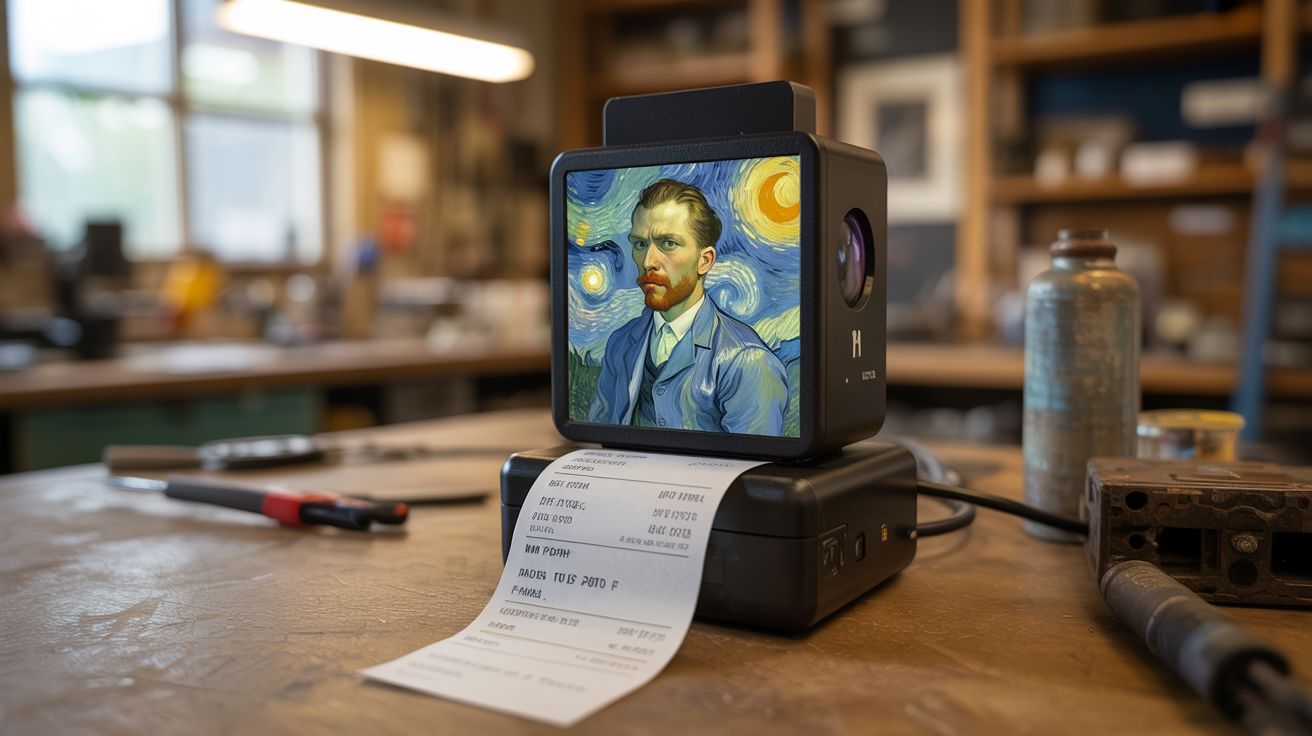
A webcam with neural style transfer turns you into a Van Gogh painting in real time — output to a thermal receipt printer for instant art.
Ratings






🧪 What Is It?
Neural style transfer is a machine learning technique that takes the content of one image and redraws it in the style of another — your face rendered as a Starry Night painting, a Picasso cubist portrait, or a Japanese woodblock print. Run this on a live webcam feed and you see yourself transformed into art in real time. Add a thermal receipt printer (salvaged from any old POS system) and people can press a button to print their AI portrait as a receipt-paper strip. Set this up at a party, event, or art show and people line up for their turn. The neural style transfer runs on even modest hardware using OpenCV's DNN module with pre-trained models.
🧰 Ingredients
- Webcam — USB, 720p or higher (junk drawer)
- Computer with decent GPU — laptop with dedicated graphics ideal, but CPU-only works (already own)
- Thermal receipt printer — USB, salvaged from old POS system (e-waste, thrift store)
- Receipt paper rolls — 80mm thermal paper (office supply)
- Monitor or TV — for the live preview display (thrift store)
- Push button — for taking the photo (electronics supplier)
- Arduino or Pi — to read the button and trigger capture (electronics supplier)
- Style reference images — famous paintings, art styles (download)
🔨 Build Steps
- Set up the style transfer pipeline. Install Python with OpenCV and the DNN module. Download pre-trained style transfer models (available as .t7 files for models like Mosaic, Starry Night, Candy, etc.). Test with a single image first: load an image, apply the model, save the output.
- Apply to live video. Capture frames from the webcam, apply the style transfer model to each frame, and display the result. At full resolution, this may be slow (1-5 FPS on CPU). Reduce input resolution to 320x240 for smoother real-time preview, then apply the model at full resolution only for the captured print.
- Add style selection. Let users choose from multiple art styles by pressing different buttons or cycling through options. Display the current style name on screen. Pre-load all models at startup to eliminate switching delay.
- Set up the thermal printer. Connect the thermal receipt printer via USB. Install the python-escpos library:
pip install python-escpos. Test by printing a simple text message and a test image. - Implement the capture workflow. When the button is pressed: freeze the current frame, apply style transfer at full resolution, display a 3-second countdown ("3... 2... 1... PRINTING!"), then send the styled image to the thermal printer. The printer outputs a receipt-paper strip with the AI portrait.
- Add a frame or border. Before printing, overlay a decorative border and caption ("AI Photo Booth - [Style Name] - [Date]") on the image. This makes the printout look intentional and polished.
- Build the booth setup. Mount the webcam at eye level, the display at face level behind the camera (so people look at the screen and face the camera simultaneously), and the printer at waist level for easy retrieval. The button should be prominent and within arm's reach.
- Optimize the experience. Add a simple attract screen when idle ("Step up for your AI portrait!"). Add sound effects for the countdown and capture. Save every captured image to a folder for later sharing or social media posting.
⚠️ Safety Notes
- Thermal printers produce hot printouts. The print head reaches 200°C+ and the paper exits warm. Don't touch the print head during or immediately after printing. Keep the printer area clear of flammable materials.
- Style transfer models can occasionally produce uncanny or disturbing results, especially with certain facial expressions or extreme lighting. Test with various subjects before deploying at events to avoid uncomfortable outputs.
- If deployed at public events, consider privacy: inform subjects that their photo is being taken and processed. Don't save images to a shared folder without consent.